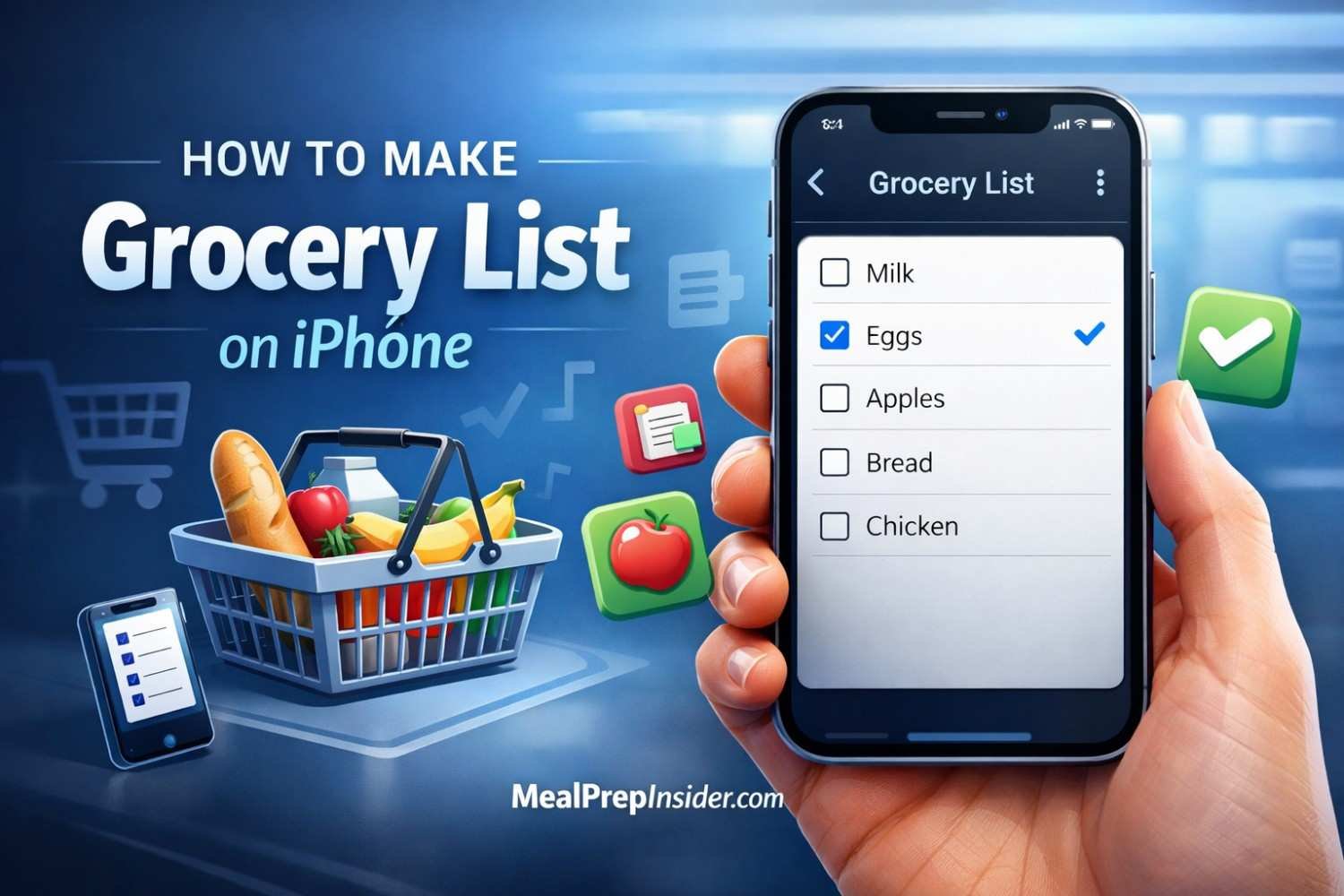
How to Make Grocery List on iPhone: Create Smart Shopping

How to Make Grocery List on iPhone: Creating a grocery list on iPhone is one of those searches that sounds simple. Until you realize there are about fifteen different ways to do it. And most guides completely miss the point.
Here’s the thing.
Your iPhone already has everything you need. Built right in. No downloads required. No subscriptions. No complicated setups.
But almost nobody uses these features correctly.
I spent weeks testing every method. Every app. Every shortcut. And I discovered something surprising. The best solutions are hiding in plain sight. You’ve probably walked past them a hundred times without noticing.
What if I told you that you could create a grocery list in under ten seconds? Using only your voice? Or that your iPhone can automatically sort items by store aisle? Or that you could share a live-updating list with everyone in your household?
This isn’t some futuristic fantasy. This is your iPhone right now. Today.
But there’s a catch.
Most people get stuck using the wrong tools for the job. They download flashy apps they’ll abandon in two weeks. They create systems so complicated they’d rather just wing it at the store. They miss out on features Apple spent years perfecting.
Not you. Not after reading this.
By the time you finish this guide, you’ll have a grocery list system that actually works. One that fits your life. One you’ll stick with.
Let’s get into it.
Why Your iPhone Is the Perfect Grocery List Tool
Think about it for a second.
Your phone goes everywhere with you. It’s at the breakfast table when you notice you’re out of eggs. It’s in your pocket at work when a recipe idea strikes. It’s right there at the store when you need to check your list.
Paper lists get lost. They get left on counters. They get washed in pockets.
Your iPhone doesn’t have those problems.
But convenience is just the beginning. The real power comes from integration. Your iPhone connects to your other Apple devices. It syncs with family members. It responds to voice commands while your hands are covered in flour.
These aren’t gimmicks. They’re genuine time-savers that add up fast.
Consider this scenario. You’re cooking dinner and realize you need chicken broth. You say, “Hey Siri, add chicken broth to my grocery list.” Done. Three seconds. You never stopped stirring.
Or this one. Your spouse adds milk to the shared list from their phone. You’re already at the store. Your list updates instantly. You grab the milk. No phone call needed. No forgotten items.
This is how modern grocery shopping should work.
And your iPhone makes it possible right out of the box.
Method 1: Using Apple Reminders for Grocery Lists
Apple Reminders is severely underrated. Most people dismiss it as a basic to-do app. They’re missing out on a powerful grocery list system hiding underneath.
Here’s how to set it up properly.
Creating Your Grocery List
Open the Reminders app. Look for the colorful circles icon. Tap “Add List” at the bottom right corner. Name it “Grocery List” or whatever works for you.
Now here’s where it gets interesting.
Tap the list you just created. Then tap “List Info” or the three dots in the top right. You’ll see options to change the color and icon. Pick the shopping cart icon. Choose a color that stands out.
This small detail matters more than you’d think. Visual distinction helps you find your grocery list fast when you have dozens of reminders.
Adding Items Quickly
Tap inside your list and start typing. Hit return after each item to add another. The speed here is remarkable once you get going.
But typing isn’t your only option.
Hold the Reminders app icon on your home screen. A quick menu appears. Select “New Reminder” and start typing immediately. You’ve just saved yourself three taps.
Better yet? Use Siri.
Say “Hey Siri, add bread to my grocery list.” Boom. It’s done. This works whether your phone is locked, in your pocket, or across the room.
Organizing With Sections
Recent iOS updates added sections to Reminders. This changes everything for grocery lists.
Create sections for different store areas:
- Produce
- Dairy
- Meat
- Frozen
- Pantry
- Household
Drag items into their appropriate sections. Now your list follows your natural shopping path. No more zigzagging across the store because items are randomly ordered.
Setting Up Smart Features
Reminders can notify you based on location. Mind-blowing for grocery shopping.
Add an item to your list. Tap the “i” icon next to it. Toggle on “Remind me at a location.” Select your regular grocery store.
Next time you pull into that parking lot? Your phone reminds you of the list. No more driving home and realizing you forgot to stop.
Sharing Your List
Tap the share icon in your grocery list. Add family members or roommates. Everyone can now add and check off items from their own devices.
Changes sync in real time. Your spouse adds yogurt from home. You see it appear while browsing the dairy aisle. This eliminates the “I thought you were getting that” conversations entirely.
Method 2: The Notes App Approach
Some people prefer Notes over Reminders. That’s completely valid. Notes offers its own advantages for grocery lists.
Creating a Checklist in Notes
Open Notes. Create a new note. Tap the checklist button in the toolbar. It looks like a circle with a checkmark inside.
Now start typing your items. Each one gets a tappable checkbox. Tap to check off items as you shop.
Why Notes Work Well
Notes handles formatting better than Reminders in some ways. You can bold category headers. You can add photos of products you need to find. You can paste links to recipes you’re shopping for.
The search function in Notes is also exceptional. Can’t remember if you added something? Search instantly.
Tables for Organized Lists
Here’s a trick most people overlook.
Notes support tables. You can create organized grocery lists with categories built in.
| Category | Items |
|---|---|
| Produce | Apples, bananas, spinach |
| Dairy | Milk, cheese, yogurt |
| Meat | Chicken breast, ground beef |
| Frozen | Ice cream, frozen peas |
Tables keep related items grouped visually. Some shoppers find this format easier to scan than checklists.
Quick Note Feature
Swipe up from the bottom right corner of your locked screen. A Quick Note appears instantly. Jot down that item before you forget it.
Later, move those quick additions to your main grocery list. This prevents those 2 AM “we need toilet paper” thoughts from evaporating by morning.
How to Make Grocery List on iPhone Using Siri
Siri transforms grocery list management. Hands-free operation changes how you interact with your list entirely.
Basic Siri Commands
Start with these fundamental phrases:
- “Add eggs to my grocery list.”
- “Show me my grocery list.”
- “Add three pounds of chicken to my shopping list.”
Siri understands quantities. It understands different list names. It works while driving, cooking, or doing anything that occupies your hands.
Creating Lists With Siri
Don’t have a grocery list yet? Ask Siri to make one.
“Hey Siri, create a new list called Weekly Groceries.”
Done. Siri creates it in Reminders automatically.
Multiple Items at Once
This saves serious time. Say “Add milk, bread, and eggs to my grocery list.” Siri adds all three in one command.
Some people read through their pantry out loud. “Add flour, sugar, vanilla extract, and baking powder.” Four items, one breath.
Checking Items Off
At the store, say, “Hey Siri, check off milk from my grocery list.” The item gets marked complete without touching your phone.
Useful when pushing a cart, holding products, or juggling a wiggly toddler.
Siri Shortcuts for Power Users
The Shortcuts app unlocks advanced Siri capabilities. Create custom commands for your shopping routine.
Example: Build a shortcut called “Weekly Staples.” When triggered, it adds your regular items automatically. Milk, bread, eggs, butter, cheese. All added with one phrase.
Set this up once. Use it forever.
Third-Party Apps Worth Considering
Built-in options work great for most people. But specialized grocery apps offer features Apple hasn’t matched yet.
AnyList
This app dominates the grocery list category for good reasons.
It learns your preferences over time. Type “mi” and it suggests “milk” because you add it every week. Auto-categorization puts items in the right sections without manual sorting.
Recipe importing is the standout feature. Paste a recipe URL. AnyList extracts ingredients automatically. Add them all to your grocery list with one tap.
The free version handles basics well. Premium unlocks meal planning, nutrition info, and additional sharing features.
OurGroceries
Sharing is where OurGroceries shines. The sync speed is genuinely impressive. Add an item and watch it appear on connected devices within seconds.
Cross-platform support matters here, too. Got an Android user in your household? OurGroceries works on both systems. Apple’s built-in options don’t.
Mealime
This app takes a different approach. Start with recipes you want to cook this week. Mealime generates your grocery list based on those meals.
It removes duplicates automatically. If two recipes need onions, you see one entry with combined quantities. Smart.
Grocery – Smart Shopping List
This one focuses on store organization. Tell it where you shop. It learns your store’s layout over time. Your list sorts to match your walking path.
Price tracking and sale alerts round out the features. Know what you spent last week. Notice when regular items go on sale.
Organizing Your Grocery List Like a Pro
A list is only useful if you can navigate it efficiently. Organization separates chaotic shopping trips from smooth ones.
Category-Based Organization
Group items by store section. This is the single most impactful organization method.
Typical categories include:
- Fresh produce
- Bakery
- Dairy and eggs
- Meat and seafood
- Frozen foods
- Canned goods
- Dry goods and pasta
- Snacks
- Beverages
- Health and beauty
- Household supplies
Walk through your store mentally. Adjust categories to match their actual layout. Every store arranges things slightly differently.
Priority Marking
Some items are essential. Others are nice-to-have. Mark the difference.
In Reminders, use the flag feature for must-buy items. Or add an asterisk before critical entries. Whatever system works for you.
When time runs short, or the budget tightens, you know exactly what can wait.
Quantity Notation
Don’t just write “bananas.” Write “bananas (6)” or “bananas x6.”
This prevents the internal debate in the produce section. Did you need three? Or was it five? Specificity saves time and mental energy.
Brand Preferences
Note specific brands when they matter to you.
“Greek yogurt (Chobani)” removes decision fatigue. You’re not standing in the dairy aisle comparing seventeen options. You know what you want.
Meal Association
Connect ingredients to their purpose.
“Chicken thighs (Tuesday tacos)” reminds you why you’re buying something. Helpful when you’re questioning purchases a week later.

Syncing Across All Your Apple Devices
iCloud synchronization is seamless when set up correctly. Your grocery list follows you from device to device automatically.
Enabling iCloud Sync
Open Settings. Tap your name at the top. Select iCloud. Make sure Reminders (or Notes, whichever you use) show green.
That’s it. Your lists now sync across iPhone, iPad, Mac, and Apple Watch.
Apple Watch Integration
Checking your wrist while shopping is surprisingly convenient. Your hands stay free for cart-pushing and product-grabbing.
Lists display clearly on the small screen. Tap to check off items. Complications let you access your list from the watch face directly.
Mac Integration
Adding items from your computer happens naturally. Working at your desk, realize you need printer paper? Add it to Reminders on Mac. It’s on your phone when you head to the store.
iPad Benefits
Planning meals on an iPad’s larger screen works beautifully. See recipes and your grocery list side by side. Drag ingredients from recipe apps directly to your list.
Sharing Grocery Lists With Family Members
Household shopping coordination requires shared lists. Apple makes this straightforward.
iCloud Sharing Setup
Open your grocery list in Reminders. Tap the share button. Add family members by name, email, or phone number. They receive an invitation to collaborate.
Everyone with access can add items, check things off, and see real-time updates.
Family Sharing Integration
If you’ve set up Family Sharing, list sharing becomes even simpler. Family members appear as easy selection options. No email addresses to remember.
Managing Permissions
Consider who needs editing access versus view-only access. Maybe kids can see the list but not modify it. Parents handle additions and deletions.
Communication Through Lists
Some families add notes alongside items. “Get the large size” or “Dad’s preference only.” This eliminates confusion about specifics.
Tips for Efficient Grocery Shopping With Your iPhone
The list is half the battle. Using it effectively completes the picture.
Preparation Before Shopping
Check your list the night before. Remove items you no longer need. Add anything you’ve forgotten.
Reorder items to match your store’s layout. Produce first if that’s where you enter. Frozen last, so things stay cold.
At the Store
Keep your phone accessible. Front pocket. Cart cup holder. Whatever keeps it within reach.
Check off items as you add them to your cart. Not after loading everything. Immediate marking prevents duplicate grabs.
Handling Store Substitutions
Item unavailable? Edit your list on the spot. Replace “brand X chicken” with “brand Y chicken.” This creates a shopping record for future reference.
Using Store Apps Together
Many grocery stores offer apps with digital coupons. Open both apps simultaneously. Check your list, then check for coupons on those items.
Some store apps even allow list import. Upload your grocery list and see relevant deals highlighted.
Checkout Review
Before getting in line, scroll through your list. Any unchecked items? Better to catch it now than in the parking lot.
Troubleshooting Frequent Grocery List Issues
Even great systems hit snags occasionally. Here’s how to resolve typical problems.
Siri Not Recognizing Your List
Siri needs the exact list of names sometimes. If “grocery list” doesn’t work, try the exact title you used. “Weekly groceries,” or “Shopping list,” or whatever you named it.
Alternatively, set a default list for Siri. Open Settings, then Reminders, then Default List. Select your grocery list.
Sync Problems Between Devices
Check iCloud status first. Visit apple.com/system-status to verify services are running normally.
Next, verify that all devices use the same Apple ID. Mixed accounts can’t sync with each other.
Finally, toggle iCloud sync off and on. This forces a fresh connection that often resolves glitches.
List Won’t Share
The person you’re sharing with needs an iCloud account. They must accept the invitation to share to activate.
Check their device for a pending notification. Sometimes invitations get buried among other alerts.
Items Disappearing
Accidentally checked off? Completed items hide by default. Scroll to the bottom of your list and tap “Show Completed” to reveal them.
Someone else on the shared list might have removed items. Check with family members if things vanish unexpectedly.
Siri Adding to Wrong List
Be specific with your commands. Instead of “add milk to my list,” say “add milk to my grocery list.” Explicitness prevents confusion when you have multiple lists.
Advanced iPhone Features for Grocery Management
Push your iPhone’s capabilities further with these advanced techniques.
Widgets for Quick Access
Long-press your home screen to enter edit mode. Add the Reminders widget. Select your grocery list specifically. Now your list appears without opening any apps.
Glance at your widget while walking through store aisles. Instant list visibility.
Focus Modes and Grocery Lists
Create a Shopping focus mode. Allow only your grocery app notifications. Block distractions while you shop.
This prevents those “ooh, a text” moments that lead to forgotten items and extra loops around the store.
Apple Pay Integration
Not directly list-related, but streamlines the total shopping experience. Wallet stays at home. Checkout happens with your phone. One device handles everything.
Shortcut Automation Ideas
Build automations that enhance grocery shopping:
- Time-based reminders: Every Sunday at 9 AM, a notification to review your grocery list
- Location-based triggers: Arriving at the store opens your list automatically
- Combined actions: One tap adds common items and shares the list with your partner
Shortcuts transform your iPhone from a simple tool into a personalized assistant.
Building a Sustainable Grocery List Habit
The best system fails without consistency. Habit formation makes grocery listing stick.
Weekly Planning Sessions
Pick a specific day and time. Sunday mornings work for many households. Review what’s running low. Check upcoming meal plans. Build your list then.
Regular timing creates automatic behavior. Eventually, you’ll reach for your phone without thinking.
Template Lists
Keep a template of items you buy regularly. Copy it each week as a starting point. Remove what you don’t need. Add specials.
This prevents starting from zero every time. Massive time saver.
Post-Shopping Review
After unpacking groceries, spend thirty seconds reviewing. What did you forget? What shouldn’t have been on the list?
These micro-adjustments improve your system continuously.
Involving Everyone
Shared lists only work when everyone participates. Make adding items easy. Encourage household members to contribute.
Some families designate a physical spot, maybe the refrigerator door, for people to shout items. One person transfers requests to the digital list during planning sessions.
Comparing Methods: Which Approach Fits You Best
Different situations call for different solutions. Here’s a breakdown.
| Method | Best For | Drawbacks |
|---|---|---|
| Apple Reminders | Most users, simple needs, Siri fans | Limited sorting options |
| Apple Notes | Visual organizers, recipe linkers | No dedicated checklist design |
| AnyList | Meal planners, recipe collectors | Some features require payment |
| OurGroceries | Mixed device households | Less Apple integration |
| Siri Alone | Hands-free lifestyles | Requires voice access |
Consider your priorities. Speed? Sharing? Organization? Integration?
No single answer fits everyone. The best method is whichever you’ll actually use.
FAQs About Making Grocery Lists on iPhone
Can I make a grocery list on iPhone without downloading any apps?
Yes, absolutely. Apple Reminders and Notes come pre-installed on every iPhone. Both work excellently for grocery lists. No App Store visit required.
How do I get Siri to add items to a specific grocery list?
Specify the list name in your command. Say “Add bananas to my grocery list” rather than just “Add bananas to my list.” If Siri still picks the wrong list, set your grocery list as the default in Settings > Reminders > Default List.
Can multiple people edit the same grocery list?
Yes. Share your Reminders list with others using iCloud. Everyone can add items, remove them, and check things off. Changes sync immediately across all connected devices.
Do grocery lists sync between my iPhone and Apple Watch?
They do, as long as both devices use the same Apple ID with iCloud sync enabled for Reminders. Your list appears on your watch automatically.
What’s the best free grocery list app for iPhone?
Apple Reminders handles most needs perfectly and costs nothing. For third-party options, AnyList’s free version and OurGroceries both offer solid functionality without payment.
Can I organize my grocery list by store aisle?
With Reminders, create sections for each store area and manually sort items. Third-party apps like Grocery – Smart Shopping List can learn your store’s layout and sort automatically.
How do I recover deleted items from my grocery list?
In Reminders, completed items stay accessible. Tap “Show Completed” at the bottom of your list. For truly deleted items, check Recently Deleted in the main Reminders screen.
Does the grocery list work without internet access?
Yes. Your list remains accessible offline. Changes sync once you reconnect to the internet. You can shop without WiFi or cellular data.
Can I attach photos to items on my grocery list?
In Notes, yes. Tap an item and add a photo directly. In Reminders, you can add photos via the item’s detail view. Helpful for finding specific products.
How do I print my iPhone grocery list?
Open your list, tap the share button, and select Print if connected to an AirPrint printer. Alternatively, screenshot your list and print the image.
Final Thoughts
Making a grocery list on an iPhone should be effortless. And now it can be.
You’ve got multiple methods at your disposal. Apple Reminders for straightforward lists with powerful sharing. Notes for visual organization and flexibility. Siri for hands-free convenience. Third-party apps for specialized features.
Pick one approach. Start small. Add items as you run out of things. Share with household members. Refine your system over time.
The goal isn’t perfection on day one. It’s building a habit that sticks.
Your iPhone sits in your pocket, ready to help. It remembers when you forget. It syncs when you can’t communicate. It listens when your hands are full.
Use those capabilities. Let technology handle the remembering while you handle the living.
No more forgotten items. No more duplicate purchases. No more wandering around stores trying to recall what you needed.
Just efficient, organized grocery shopping. Every single time.
Start your first iPhone grocery list today. You’ll wonder why you waited so long.
SUGGESTED POST >> Best Grocery List Essentials: Easy Weekly Shopping Checklist
Discover more from Meal Prep Insider
Subscribe to get the latest posts sent to your email.